

I have previously written a post on Power BI Dataflows explaining what it is, how you can set it up when you should use it, and why you should use it. I am a big fan of the Gen 1 Power BI Dataflows. So now, with the new introduction of Dataflows Gen 2 in Fabric, I had to take a deeper look.
In this article, we will look at the new features that separate Dataflows Gen 2 from Dataflows Gen 1. Then we’ll have a look at how you can set it up inside Fabric before I try to answer the when and why to use it. What new possibilities do we have with dataflows Gen 2?
After digging into the new dataflows Gen 2, there are still unanswered questions. Hopefully, in the weeks to come, new documentation and viewpoints will be available to answer some of these.
To learn the basics of a dataflow you can have a look at my previous article regarding dataflows gen 1.
What are Dataflows Gen 2 in Fabric?
To start, Dataflows Gen 2 in Fabric is a development from the original Power BI Dataflows Gen 1. It is still Power Query Online that provides a self-service data integration tool.

As previously, you can create reusable transformation logic and build tables that multiple reports can take advantage of.

What is the difference between Dataflows Gen 1 and Gen2 in Fabric?
So, what is new with Dataflows Gen 2 in Fabric?
There are a set of differences and new features listed in the Microsoft documentation here. They provide the following table.
| Feature | Dataflow Gen2 | Dataflow Gen1 |
|---|---|---|
| Author dataflows with Power Query | ✓ | ✓ |
| Shorter authoring flow | ✓ | |
| Auto-Save and background publishing | ✓ | |
| Output destinations | ✓ | |
| Improved monitoring and refresh history | ✓ | |
| Integration with data pipelines | ✓ | |
| High-scale compute | ✓ | |
| Get Data via Dataflows connector | ✓ | ✓ |
| Direct Query via Dataflows connector | ✓ | |
| Incremental refresh | ✓ | |
| AI Insights support | ✓ |
But what is different, and what does that mean? I would say the features output destination and integration with data pipelines are the most existing changes and improvements from Gen 1. Let’s have a look.
Output destination
You can now set an output destination for your tables inside your dataflow. That is, for each table, you can decide if by running that dataflow, the data should be loaded into a new destination. Previously, the only destination for a dataflow would be a power bi report or another dataflow.
The current output destinations available are:
- Azure SQL database
- Lakehouse
- Azure Data Explorer
- Azure Synapse Analytics
And Microsoft says “many more are coming soon”.


Integration with datapipeline
Another big change is that you can now use your dataflow as an activity in a datapipeline. This can be useful when you need to perform additional operations on the transformed data, and also opens up for reusability of transformation logic you have set up in a dataflow.
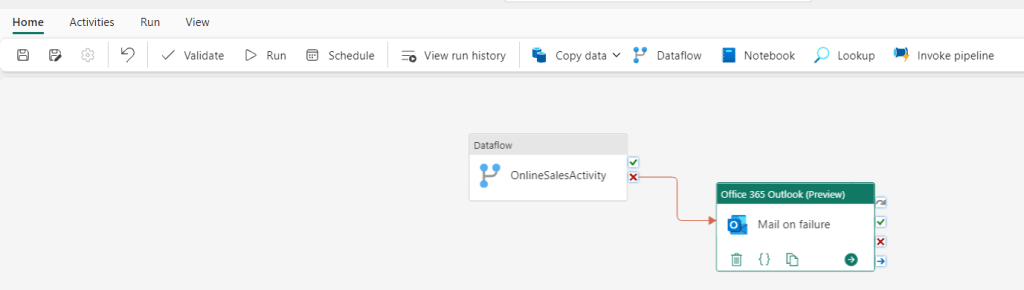

Improved monitoring and refresh history
In Gen 1 the refresh history is quite plain and basic as seen from the screenshot below.
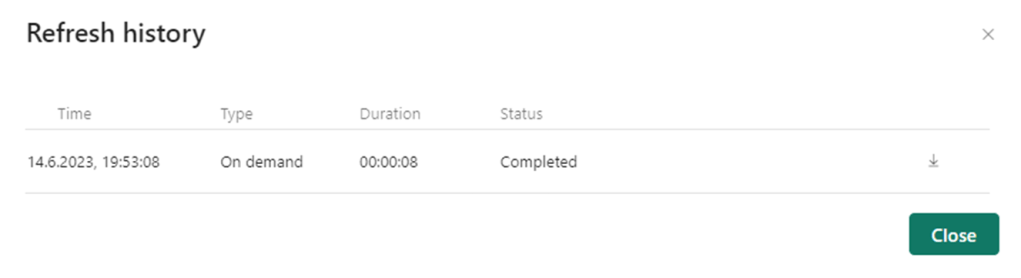
In Gen 2, there have been some upgrades on the visual representations, as well as the level of detail you can look into.
Now you can easier see what refreshes succeeded and which ones failed with the green and red icons.

In addition, you can go one step deeper and look at each refresh separately. Here you get details on request ID, Session ID and Dataflow ID as well as seeing for the separate tables if they succeeded or not. This makes debugging easier.

Auto-save and background publishing
Now, Fabric will autosave your dataflow. This is a nice feature if you for whatever reason suddenly close your dataflow. The new dataflow will be saved with a generic name “Dataflow x” that you can later change.
High-scale compute
I have not found much documentation on this, but in short dataflow Gen 2 also got an enhanced compute engine to improve performance similar to Gen 1. Dataflow Gen 2 will create both Lakehouse and Warehouse items in your workspace and uses these to store and access data to improve performance for your dataflows.
How can you set up Dataflows Gen 2 in Fabric?
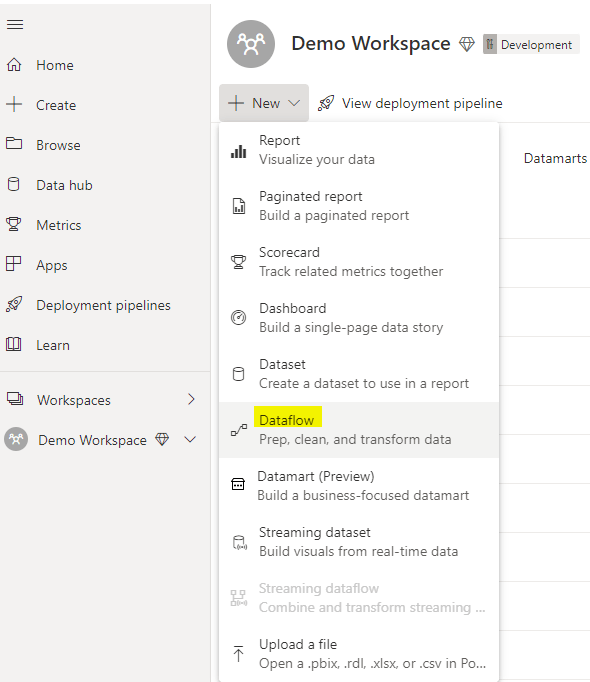
You can create a Dataflow Gen2 inside Data Factory inside of Fabric. Either through the workspace and “New”, or the start page for Data Factory in Fabric.


Here you can choose what source you want to get data from, if you want to build on an existing data flow, or if you want to import a Power Query Template.
If you have existing dataflows you want to use, you can choose to export them as a template and upload it as a starting point for your dataflow.
When should you use Dataflows Gen 2 in Fabric?
In general, the dataflows gen 2 can be used for the same purpose as dataflows Gen 1. But what is special about Dataflows Gen 2?
The new data destination feature combined with the integration to datapipeline provide some new opportunities:
- You can use the dataflow to extract the data and then transform the data. After that, you now have two options:
- The dataflow can be used as a curated dataset for data analysts to develop reports.
- You can choose a destination for your transformed tables for consumption from that destination.

- You can use your dataflow as a step in your datapipeline. Here there are multiple options, but one could be
- Use a dataflow to both extract and transform/clean your data. Then, invoked by your datapipeline, use your preferred coding language for more advanced modelling and to build business logic.

The same use cases that we had for dataflows Gen 1 also apply to dataflows Gen 2:

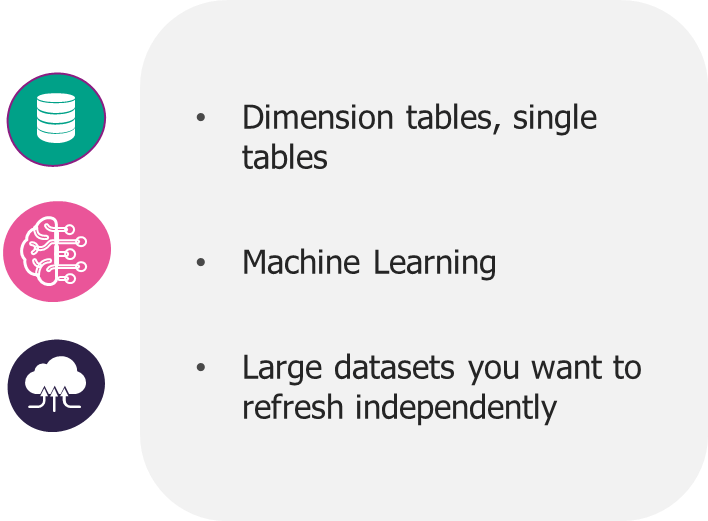
Dataflows are particularly great if you are dealing with tables that you know will be reused a lot in your organization, e.g. dimension tables, master data tables or reference tables.

If you want to take advantage of Azure Machine Learning and Azure Cognitive Services in Power BI this is available to you through Power BI Dataflows. Power BI Dataflows integrates with these services and offers an easy self-service drag-and-drop solution for non-technical users. You do not need an Azure subscription to use this but requires a Premium license. Read more about ML and Cognitive Services in Power BI Dataflows here.

In addition, Power BI Dataflows provides the possibility to incrementally refresh your data based on parameters to specify a date range. This is great if you are working with large datasets that are consuming all your memory – but you need a premium license to use this feature.
Limitations
But, there are also some limitations with dataflows Gen 2 stated by Microsoft:
- Not a replacement for a data warehouse.
- Row-level security isn’t supported.
- Fabric capacity workspace is required.
Why should you use Dataflows Gen 2?
As for the Gen 1 dataflows, Gen 2 can help us solve a range of challenges with self-service BI.
- Improved access control
- One source of truth for business logic and definitions
- Provides a tool for standardization on the ETL process
- Enables self-service BI for non-technical users
- Enables reusability

But there are still some unanswered questions…
Even though the new additions to Dataflows Gen 2 are exciting, there’s still some questions that remain unanswered.
As I read more documentation and get more time to play around with the tool, I hope to be able to update this article with answers.
- What about version control? If you edit a dataflow as a transformation activity in your data pipeline it is important to be able to back track changes and be able to roll back to previous versions. How would that work?
- What are the best practices? Is it best to use Power BI dataflows as the main ETL tool now, or should we use pipelines. Should dataflows be mainly used for simple transformations as cleansing, or should we perform as much transformation and logic development as possible?
- To mainly use dataflows for simple clean up transformations and then use a notebook in a pipeline for more advanced transformations would be my first guess. But then the question on what provides best performance come up.
So, to conclude, the new dataflow Gen 2 features are awesome. It opens up some very exciting new opportunities for your ETL process. The question now is when those opportunities are something you should take advantage of, and when you should not.

 Marthe Moengen