
OneLake in Fabric is a Data Lake as a Service solution that provides one data lake for your entire organization, and one copy of data that multiple analytical engines can process.
Microsoft Fabric is the new and shiny tool that Microsoft released May 23rd during Build. There are multiple very interesting features and opportunities that follows with Fabric, but as there already exist some great articles that give a nice overview, I want to dig into some of the spesific Fabric components more in details.
So, let’s start with the feature that to me is one of the most game changing ones. A fundamental part of Microsoft Fabric, the OneLake.

Content
What is OneLake in Microsoft Fabric?

First, let’s start with an introduction. In short:
OneLake = OneDrive for data
The OneLake works as a foundation layer for your Microsoft Fabric setup. The idea is that you have one single data lake solution that you can use for your entire organisation. That drives some benefits and reduces complexity:
- Unified governance
- Unified storage
- Unified transformations
- Unified discovery

Per tenant in Microsoft Farbic you have ONE OneLake that is fully integrated for you. You do not have to provision it or set it up as you would with your previous Data Lakes in Azure.
OneLake is the storage layer to all tour Fabric experiences, but also to other external tools. In addition, you can virtually copy data you have in other storage locations into your OneLake using shortcuts. Shortcuts are objects in OneLake that point to other storage locations. This feature deserves its own blog post, so for now, let’s just summarize what OneLake is with the following:
OneLake in Fabric is a Data Lake as a Service solution that provides one data lake for your entire organization, and one copy of data that multiple analytical engines can process.
How can you use File Explorer with your OneLake in Microsoft Fabric?
So, as OneLake is your One Drive for data, you can now explore your data in your File Explorer. To set this up you need to download the OneLake file explorer application that integrates Microsoft OneLake with the Windows File Explorer. This can be done through this link: https://www.microsoft.com/en-us/download/details.aspx?id=105222
After downloading the application, you log in with the user you are using when logging into Fabric.
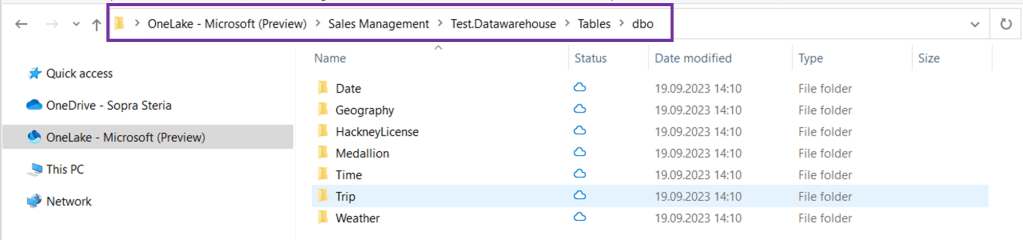
You can now view your workspaces as folders in your File Explorer.

You can then open up the workspaces you want to explore and drill down to specific tables. Below I have opened up my Sales Management workspace, then opened the data warehouse I have created in that workspace and then the tables I have in my data warehouse.
This also means that you can drag and drop data from your File Explorer into your desired Fabric folders – but not for all folders. This works if you want to drag and drop files to your Files folder in your datalake instead of uploading the files directly inside Fabric.
Below, I dragged my winequality-red.csv file from my regular folder to my Files folder inside a DataLake in OneLake.

It will then appear inside the DataLake explorer view in Fabric:

File Structure in OneLake

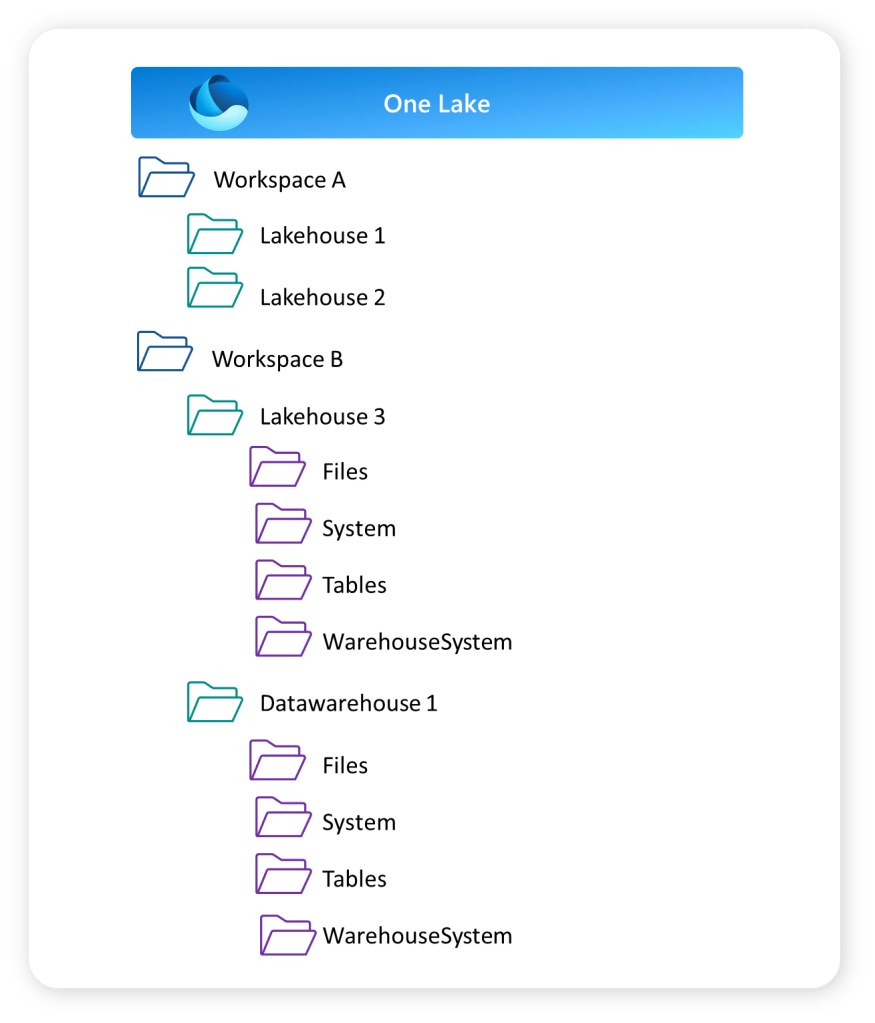
You can structure your data in OneLake using the Workspaces in Fabric. Workspaces will be familiar to anyone who has been using Power BI Service.
The Workspaces creates the top folder structure in your OneLake. These work as both storage areas and a collaborative environment where data engineers, data analysts and business users can work together on data assets within their domain.
The lakehouse and data warehouse that you might have created in your workspace will create the next level in your folder structure as shown below. This shows the Folder View of your workspaces.
Access and Permissions in OneLake
How do you grant access to the OneLake?
Inside a workspace there are two access types you can give:
- Read-only
- Read-write
The read-only role is a viewer role that can view the content of the workspace, but not make changes. The role can also query data from SQL or Power BI reports, but not create new items or make changes to items.
Read-write is the Admin, Member and Contributor role. They can view data directly in OneLake, write data to OneLake and create and manage items.
To grant users direct read access to data in OneLake, you have a few options:
- Assign them one of the following workspace roles:
- Admin: This role provides users with full control over the workspace, including read access to all data within it.
- Member: Members can view and interact with the data in the workspace but do not have administrative privileges.
- Contributor: Contributors can access and contribute to the data in the workspace, but they have limited control over workspace settings.
- Share the specific item(s) in OneLake with the users, granting them ReadAll access. This allows them to read the content of the shared item without providing them with broader access to the entire workspace.
By utilizing these methods, you can ensure that users have the necessary read access to the desired data in OneLake.


What are the benefits of OneLake?
So to conclude, let’s try and summarise some of the benefits you get with OneLake in Fabric.
- OneLake = One version of your data
- No need to copy data to use it with another tool or to analyze it alongside other data sources. The shortcuts and DirectLake features are important enablers for this. These features deserve a separate blog.
- Datalake as a Service
- For each tenant you have a fully integrated OneLake. No need to spend time provisioning or handling infrastructure. It works as a Datalake as a Service.
- Multiple Lakehouses
- OneLake allows for the creation of multiple lakehouses within one workspace or across different workspaces. Each lakehouse has its own data and access control, providing security benefits.
- Supports Delta Format
- The OneLake supports the delta file format, which optimizes data storage for data engineering workflows. It offers efficient storage, versioning, schema enforcement, ACID transactions, and streaming support. It is well-integrated with Apache Spark, making it suitable for large-scale data processing applications.
- Flexible Storage Format
- You can store any type of file, structured or unstructured. That means that data scientists can work with raw data formats, while data analysts can work with structured data inside the same OneLake.
- OneLake Explorer
- Easy access to your OneLake with the OneLake Explorer to get a quick overview of your data assets, or upload files to your lakehouse.
- Familiar UI
- For any Power BI developer, the touch and feel of Fabric will be familiar.
Hope you found this blog useful! Let me know if you have started using OneLake!
Usefull links:
 Marthe Moengen